Members
Manage access to the Team Plan.
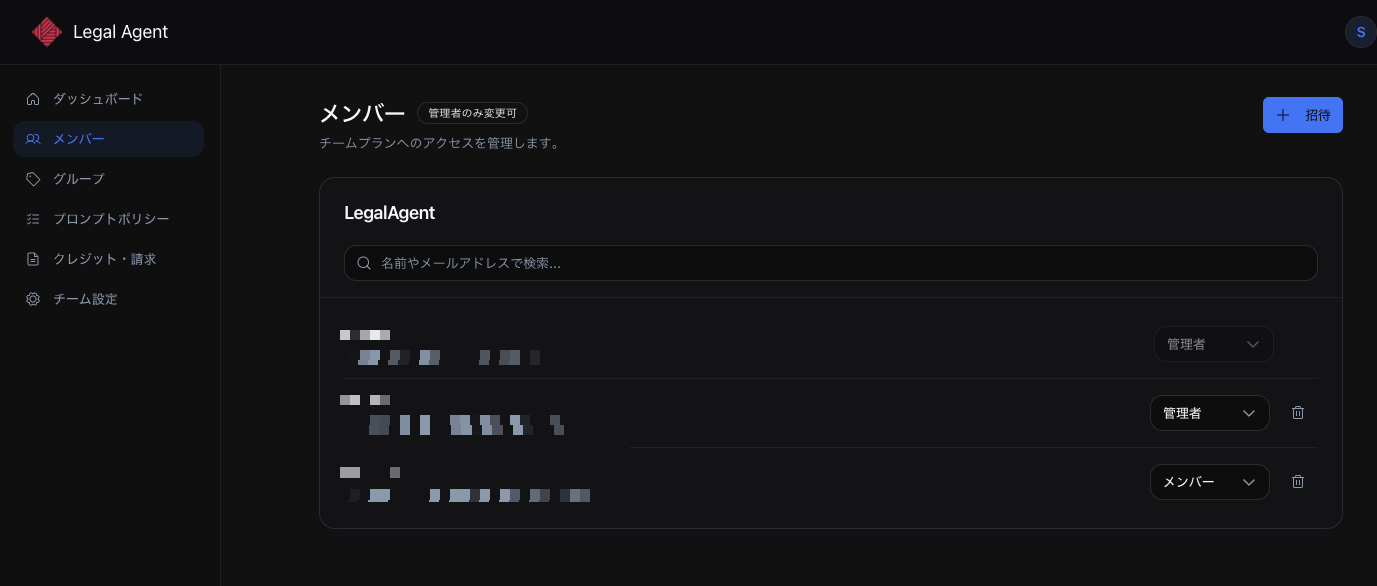
Member list
The following information is shown for each member.
- Name
- Email address
- Role (Admin / Member)
You can filter members by searching by name or email address.
Roles
You can promote team members to admin to delegate team management.
| Capability | Admin | Member |
|---|---|---|
| Dashboard | Yes | View only |
| Members | Yes | View only |
| Groups | Yes | View only |
| Prompt policies | Yes | View only |
| Skills | Yes | View only |
| Credits & billing | Yes | — |
| Team settings | Yes | View only |
Changing a role
Change a member's role from the Members page. Changes are saved automatically.
Removing a member
Click the delete icon next to the member you want to remove from the team. Removing someone from the team does not delete their account. To delete an account, the individual member needs to do so from the Account page.
Inviting members
Click + Invite, then enter the member's email address and role to send an invitation. An invitation email is sent to the specified address; the invitee can join the team by accepting the invitation from that email.
- Invitation links expire after a set period
- The invitee must sign in with the email address they were invited at
- If the invitee has an active personal subscription, they need to cancel it first (to prevent double billing)
If the invitation email does not arrive, please check the spam folder as well.
Managing invitations
The Invitations screen shows a list of invitations you have sent.
| Status | Description |
|---|---|
| Pending | The invitation has been sent but not yet accepted |
| Accepted | The member has accepted the invitation |
| Expired | The invitation link has expired |
You can copy the invitation link to your clipboard with the Copy link button.
For invitations that are still pending (not yet accepted), you can use Cancel invitation.