Prompt policies
Manage the prompt policies you share with team members. For each policy, you can choose either Enforced or Shared mode.
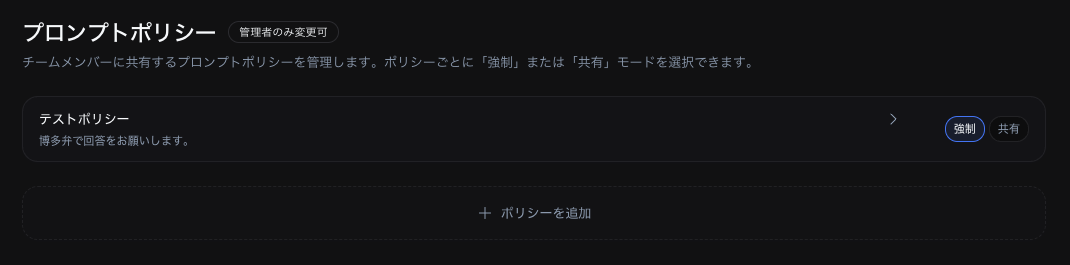
Application modes
Each policy can use one of the following two modes.
| Mode | Badge | Description |
|---|---|---|
| Enforced mode | Enforced | The policy is automatically applied to the target groups and members. Members cannot disable it |
| Shared mode | Shared | Target groups and members can optionally select the policy from the prompt picker (no enforcement) |
Creating a policy
- Click + Add policy
- Enter a Policy name
- Enter the AI instructions in Policy content (up to 50,000 characters)
- Configure the Scope
- Click Save changes
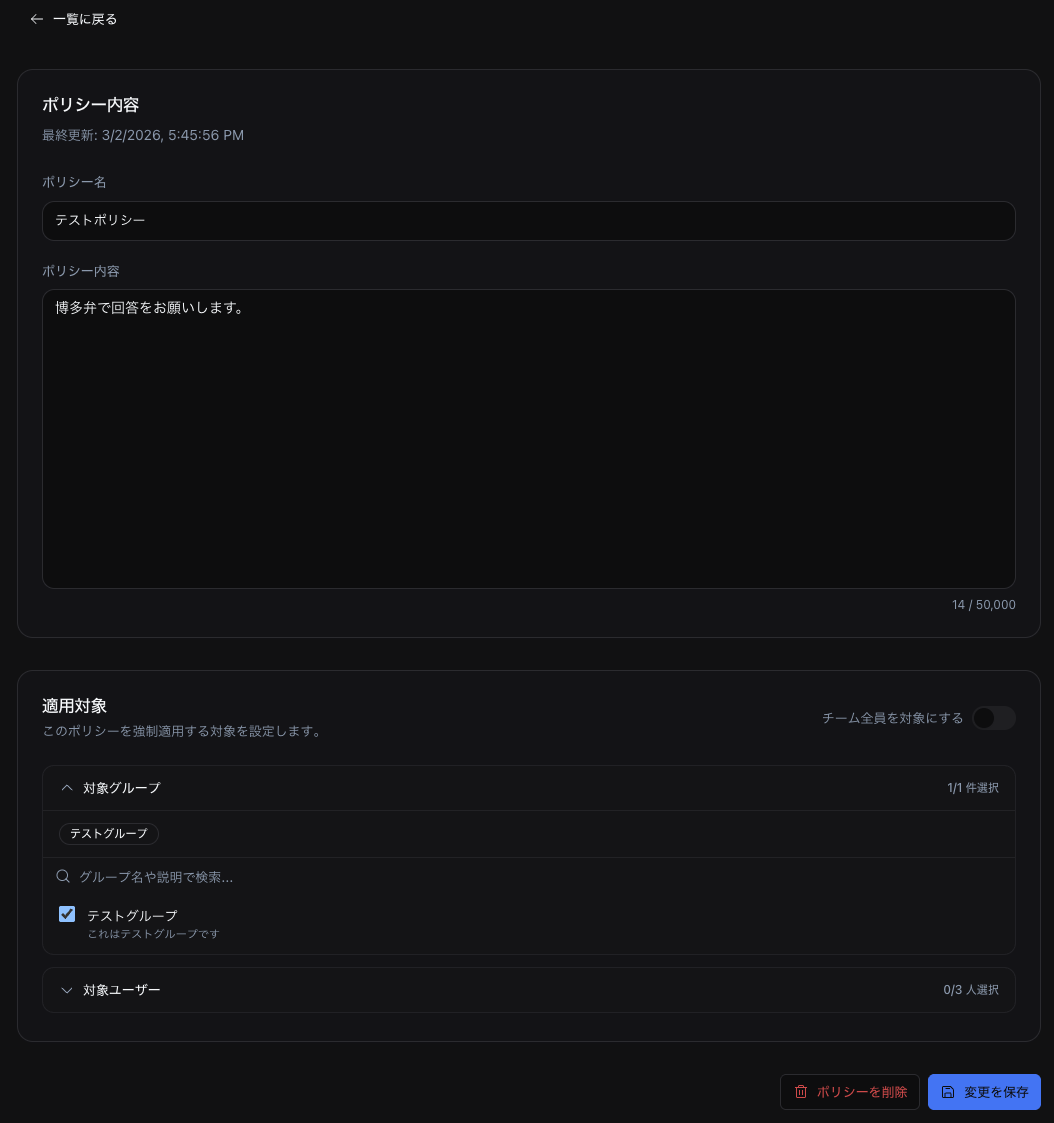
You can create up to 30 policies.
Configuring scope
You can specify the scope of a policy in the following ways.
- Apply to the entire team — When ON, the policy applies to all members
- Target groups — Apply by selecting specific groups
- Target users — Apply by selecting specific members individually
If no target is selected, the policy is not applied to anyone.
How enforced mode works
A policy with enforced mode behaves as follows.
- Enforce team policies must be enabled in team settings
- When a target member sends a chat, the policy content is automatically appended to the prompt
- The policy appears as a "Team enforced prompt" in the member's prompt screen
- Members cannot edit the content (it can only be edited from the team admin screen)
How shared mode works
A policy in shared mode behaves as follows.
- It appears in the target member's prompt library with a Team badge
- Members can optionally select it from the prompt picker when sending a chat
- It is not enforced
Enabling and disabling policies
Each policy has an Enabled / Disabled toggle. When disabled, the policy is not applied regardless of the mode.