Settings
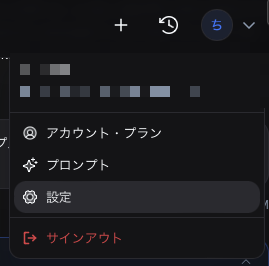
From the icon at the top right of the header, select Settings to open the settings screen.
Document Integration
Controls how changes are applied to the Word document.
| Setting | Description |
|---|---|
| Auto-attach explanatory comments | When enabled: a short explanatory comment is added automatically to each change. When disabled: changes are applied without auto-adding comments |
| Enable comments | When enabled: tools are allowed to add comments. When disabled: comment-related actions are hidden and no comments are inserted |
| Add tracked changes for app edits | When enabled: tracked changes are added regardless of Word's revision settings. When disabled: Word's revision settings are followed |
Workspace Settings
Choose the defaults for appearance, language, and notifications.
| Setting | Description |
|---|---|
| Theme | Light / Dark / Match system |
| Language / Language | English, 日本語, 한국어, Español, Français, Deutsch, 繁體中文, 简体中文 |
| Notification volume | Adjust the notification sound volume (0 mutes, up to 2.0x maximum) |
Chat Settings
| Setting | Description |
|---|---|
| Send with Enter key | When enabled: press Enter to send a message (Shift + Enter for a new line). When disabled: send with Ctrl + Enter (⌘ + Enter) |
| Auto-delete chat history | When enabled: chat history older than 30 days is deleted automatically. When disabled: chat history is retained |
On Team plans, the auto-delete setting for chat history may be managed in the team settings.
Cloud Storage
Connect Google Drive so you can pick files from it in chat.
Cloud storage connections are available on the Pro / Max plan or higher.
- Click the Connect button to connect Google Drive
- Once connected, "Select from Google Drive" becomes available in the chat attachment menu
To disconnect, click the Disconnect button.
Browser security settings may prevent the connection from completing.