Chat
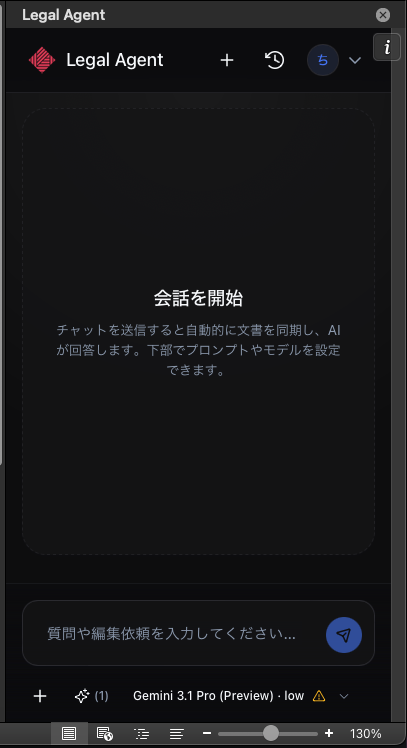
After you sign in, the chat screen appears. Type a message into the text area at the bottom of the screen to interact with the AI.
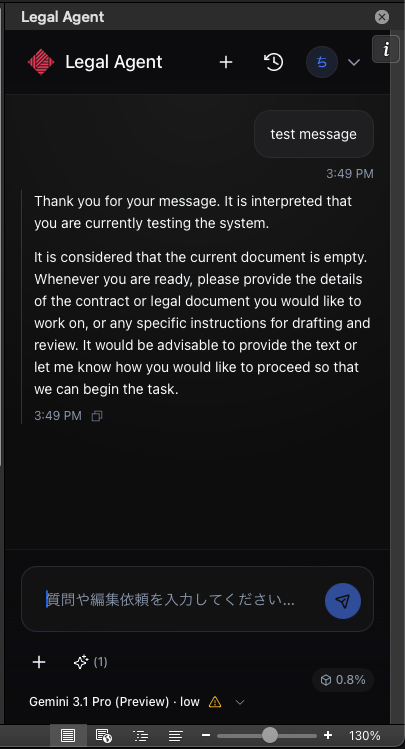
When you send a chat message, the document is synced automatically and the AI responds. You can configure prompts and the model from the bottom of the screen.
Document Sync
After you send a chat message, the contents of the currently open Word document are sent automatically to the AI. This way, the AI understands the document content before answering or making edits.
Selecting a Model
You can choose which AI model to use from the bottom of the screen.
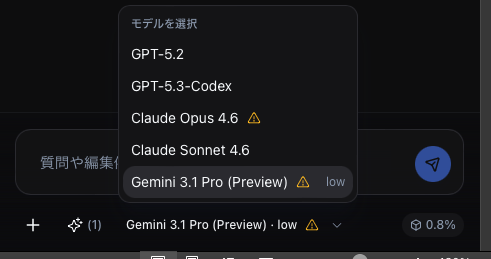
| Model | Provider | Reasoning level | Web search | Notes |
|---|---|---|---|---|
| GPT-5.5 | OpenAI | none / low / medium / high / xhigh | Supported | Default model. Supports tool search. Handles long inputs (over 272K tokens) |
| GPT-5.4 | OpenAI | none / low / medium / high / xhigh | Supported | Supports tool search. Capable of high-precision document edits |
| GPT-5.3-Codex | OpenAI | low / medium / high / xhigh | Supported | — |
| Claude Opus 4.7 | Anthropic | low / medium / high / xhigh / max | Supported | Latest Opus. At max it makes precise, well-ordered edits. Natural Japanese output. Higher credit consumption |
| Claude Opus 4.6 | Anthropic | low / medium / high / max | Supported | At max it makes precise, well-ordered edits. Natural Japanese output. Higher credit consumption |
| Claude Sonnet 4.6 | Anthropic | low / medium / high | Supported | — |
| Gemini 3.1 Pro (Preview) | low / medium / high | Supported | Recommended for large contexts, such as long documents combined with attachments. Note that output may not always follow the prompt |
Reasoning Level
You can choose how deeply the AI thinks (the reasoning level). Higher levels improve answer quality but consume more credits.
| Level | Description |
|---|---|
| none | No additional thinking time |
| low | Light reasoning |
| medium | Standard reasoning |
| high | Deep reasoning |
| xhigh | Maximum thinking time |
| max | The deepest thinking possible |
The available reasoning levels depend on the model.
Web Search
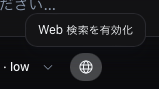
Turning on the Enable web search toggle at the bottom of the screen lets the AI reference information on the internet while answering.
File Attachments
Use the + button at the bottom of the screen to attach files to the chat.
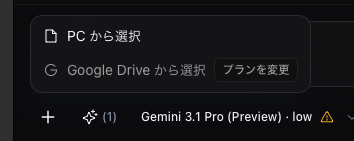
- Select from PC — Upload local files
- Select from Google Drive — Pick files from a connected Google Drive (Pro/Max plan or higher)
You can attach up to 50 files per session. Each file may be up to 10 MB.
Files inside a Google Drive or OneDrive that is mounted on your PC can be uploaded via "Select from PC."
Selecting Roles & Skills
Use the prompt button at the bottom of the screen to apply preconfigured Roles or Skills to your message.
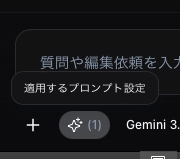
- Role — Instructions applied every time you send a chat message (formerly "Prompt")
- Skill — Procedures the AI selects automatically based on context
The selected roles and skills are sent automatically along with your message. See "Roles & Skills" for details.
Chat History
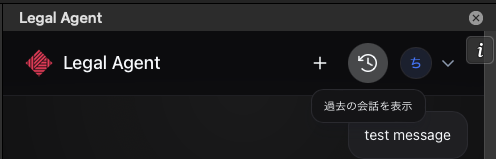
Click the Show past conversations icon in the header to display chat history.
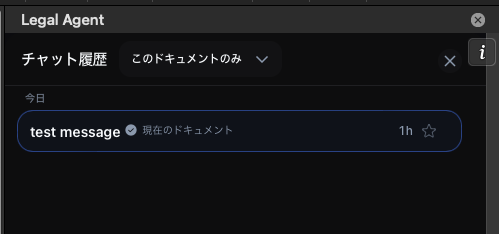
- Document filter — Toggle between "All conversations" and "This document only"
- Document state — Each conversation shows whether it is tied to "the current document" or "another document"
You can only continue chats that are tied to the same document. Chats tied to a different document cannot be continued. Documents duplicated by copying are treated as the same document.
Favorites
In chat history, you can Add to favorites or Remove from favorites for any conversation.
Searching Messages
You can search messages within the currently open chat. Use one of the methods below to bring up the search bar, then enter a keyword to highlight matches.
- The shortcut
Cmd + F(Mac) orCtrl + F(Windows) - Right-click in the chat area → select Search
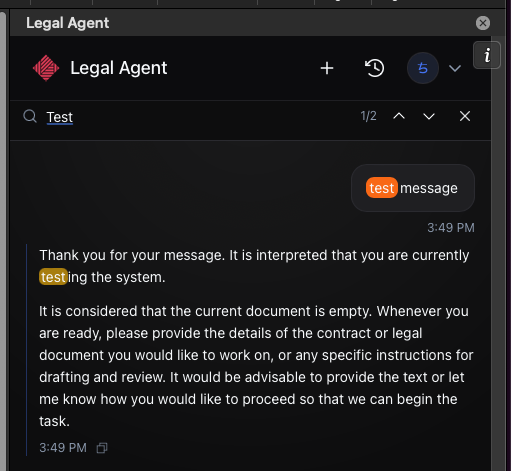
The right-click menu also lets you copy the selected text or message.
Context Usage
After the AI responds, the Context usage (estimate) is displayed.
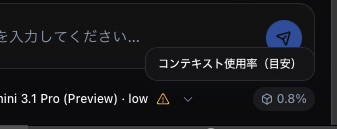
This shows what portion of the model's context window is in use. Before the usage approaches 100%, switch to a new chat or change to a model that supports a longer context.
As context usage rises, the AI's answer quality may decline. We recommend starting a new chat at the right time.
Tool Execution Panel
When the AI edits the document, the steps are displayed in the Tool execution panel.
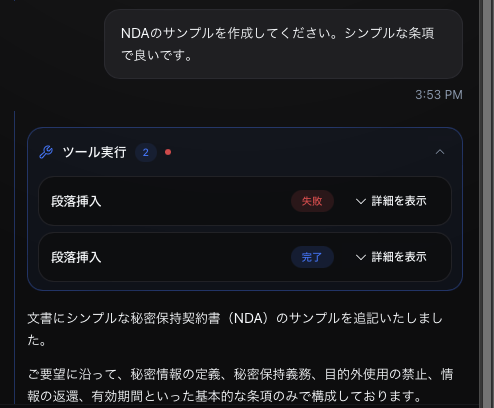
You can see each step's status (analyzing / running / completed / failed) and expand the details to review what changed.
For some tools, expanding the details lets you jump to the corresponding location in the document.
Confirmation Questions
When there are multiple options for how to proceed with a task, the AI shows a confirmation question in chat. Switch between questions using the tabs and click an option to make the AI continue based on your answer.
Some questions allow you to choose multiple options.
Copying Messages
You can copy the AI's response using Copy answer at the bottom of the message.
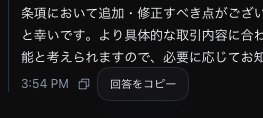
The copied content is preserved in Markdown format.