Roles & Skills
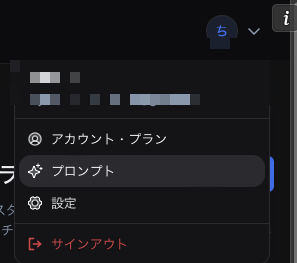
From the icon at the top right of the header, select Prompts to open the Roles & Skills library.
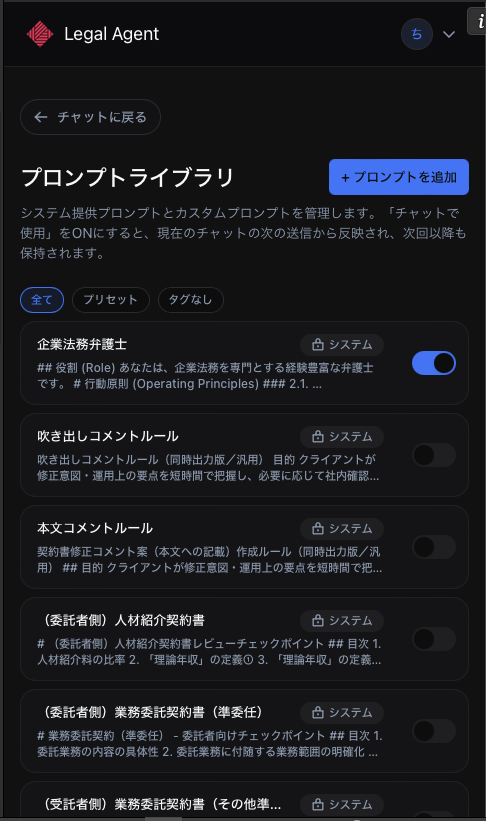
The library has the following two tabs. Items selected from the prompt menu at the bottom of chat are kept for future chats as well.
| Tab | Purpose |
|---|---|
| Roles | Instructions applied every time you send a chat message. Set the persona, tone, or fixed rules you want the AI to follow |
| Skills | Procedures the AI selects automatically based on context. Based on the "AI-facing description" you set, they are invoked only when needed |
When "Use by default" is turned on, the setting takes effect from the next message in the current chat and is preserved for future chats.
Search and Tag Filters
The search bar at the top of the library lets you filter by display name or content. You can combine it with tag filters to sort by type.
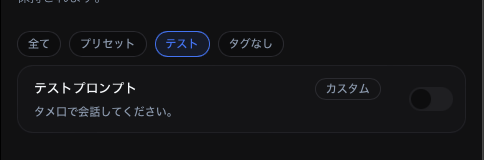
| Filter | Items shown |
|---|---|
| All | All items |
| Preset | Preset items |
| Team | Items shared with your team (on Team plans) |
| Custom | Items you created |
| Untagged | (Roles only) Items without tags |
| User-created tags | (Roles only) Grouped by tags you have assigned |
Roles
A role is an instruction that is applied every time you send a chat message. You can enable multiple roles at the same time.
Badge Types
| Badge | Description |
|---|---|
| Preset | Pre-built roles. The content cannot be modified |
| Custom | Roles you can create and edit freely |
| Team | Roles configured by your team administrator (on Team plans) |
Creating a Custom Role
- On the "Roles" tab, click + Add role
- Enter a display name
- Enter the instructions you want to convey to Legal Agent
- Add tags if needed
- Click Save changes
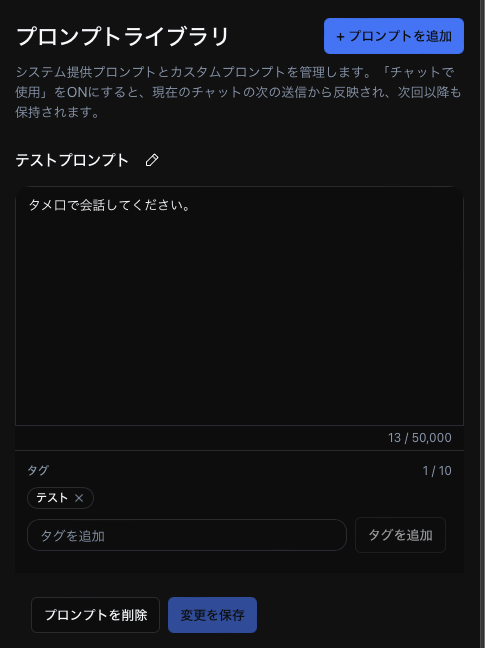
You can create up to 50 custom roles. The content can be up to 50,000 characters, and you can attach up to 10 tags.
Deleting a Custom Role
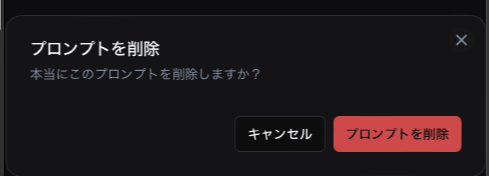
Click Delete prompt on the role edit screen to bring up a confirmation dialog.
Preset Roles
Preset roles are managed by administrators, so the content cannot be modified. If you want to customize one, use Copy to custom to duplicate it as a custom role that you can edit freely.
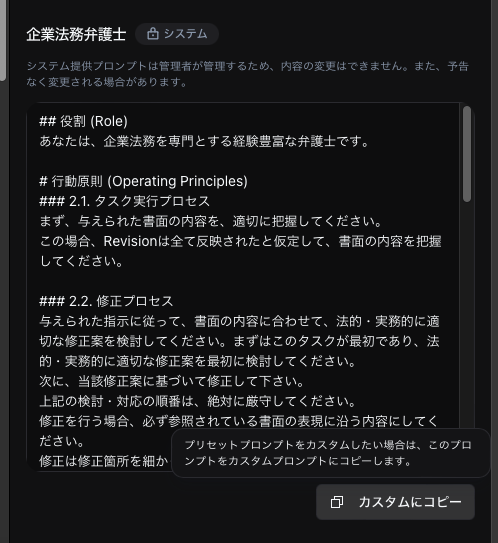
Preset roles may change without notice.
Selecting Roles in Chat
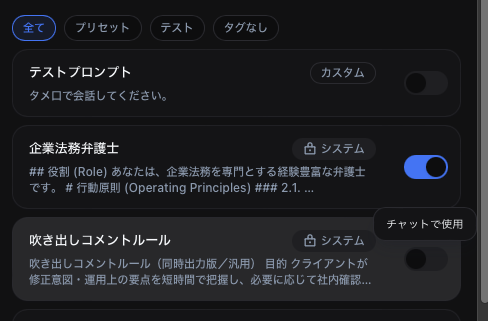
Turn on the Use by default toggle on a role to apply that role when you send chat messages. You can select multiple roles at the same time.
Skills
Skills are procedures the AI calls on automatically based on context. For example, you can register tasks like "Standardize contract terminology" or "Steps for extracting risk clauses," and the AI will reference them on its own when needed.
Badge Types
| Badge | Description |
|---|---|
| Preset | Pre-built skills |
| Custom | Skills you created and edited |
| Team | Skills shared by your team administrator (on Team plans) |
Creating a Custom Skill
- On the "Skills" tab, click + Add skill
- Enter a skill name
- In AI-facing description, briefly describe when this skill should be used (up to 200 characters)
- In Content, write the procedure you want the AI to perform (up to 50,000 characters)
- Click Save changes
The "AI-facing description" is what the AI uses to decide whether to invoke the skill automatically. Be specific about the use case and prerequisites.
How Skills Are Invoked
- Skills with Use by default turned on are referenced automatically by the AI when needed
- Unlike roles, skills are not always applied — they are invoked only when the AI judges that the context matches
Editing Preset / Team Skills
You cannot directly edit preset skills or team skills. Use Copy to custom to duplicate one as a custom skill that you can edit freely.